MicKeeper
The right mic, at the right level, and AirPods that never sound like a phone call.
When AirPods or other Bluetooth headphones connect to a Mac, macOS makes them the microphone too. As soon as an app uses that microphone (a call, a Meet tab, dictation), the headphones switch to call mode and everything you hear turns mono and muffled. With an iPhone nearby, macOS may switch to its microphone instead. And apps like Zoom, Teams and Chrome change your mic level on their own.
MicKeeper switches the microphone back and, if you want, puts the level back too.
Features
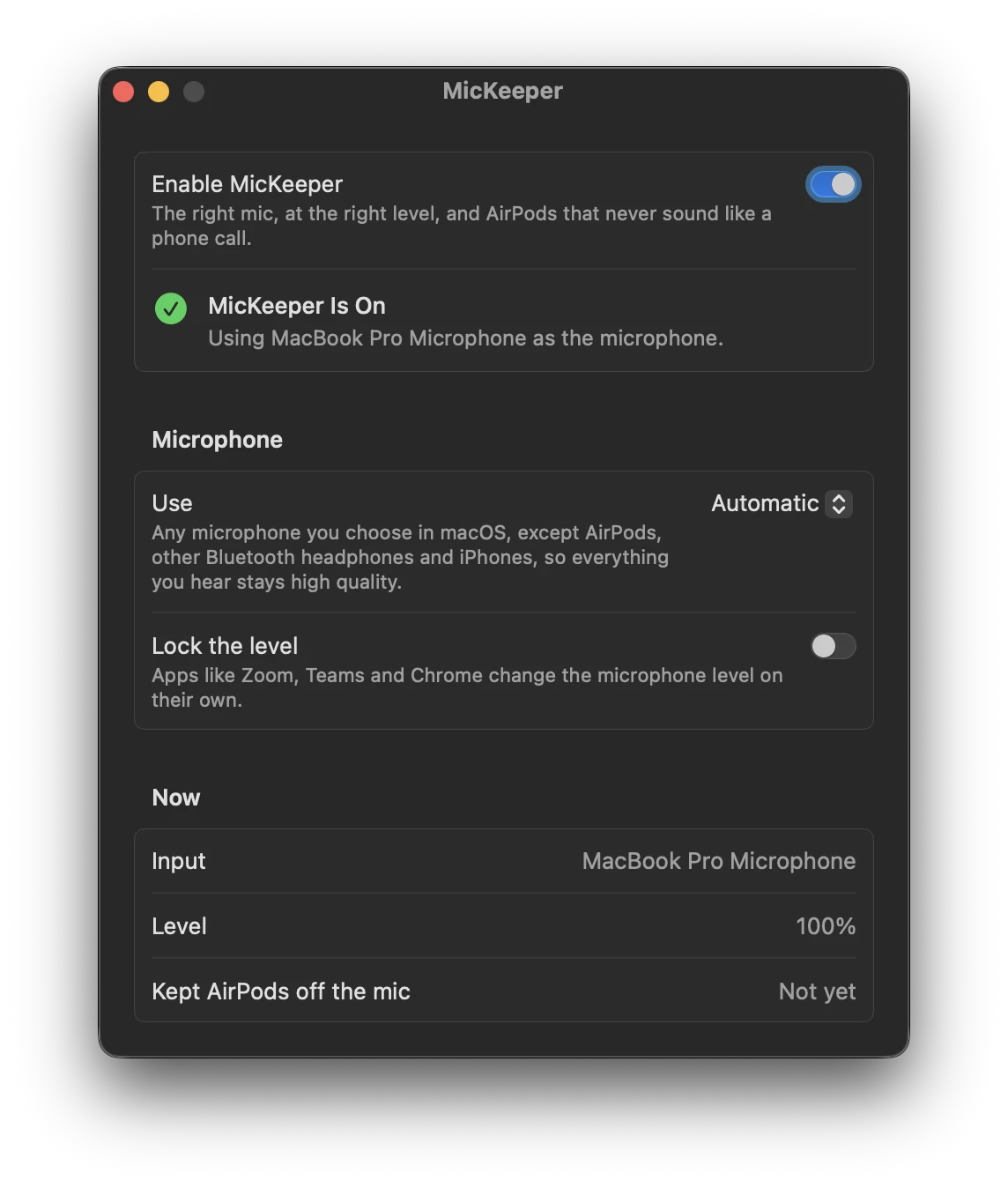
- Switches back from AirPods, other Bluetooth headphones and iPhones to the mic you were using, or the built-in one
- You can pick one microphone and MicKeeper will use it whenever it's connected
- Can lock the microphone level so apps stop changing it
- About 3 MB of memory and no polling. It sleeps until macOS reports a change
- Updates itself, and only installs updates signed by the developer and notarized by Apple
Install
brew install --cask fratayaydn/tap/mickeeperOr download MicKeeper-<version>.dmg from the latest release, open it and drag MicKeeper to Applications. The app is signed with a Developer ID and notarized by Apple.
A Mac with Apple silicon, macOS 13 Ventura or later. No permissions needed, because it never listens to the microphone. It only changes which one is selected.
Questions
Why do my AirPods sound so bad on my Mac sometimes?
Something is using their microphone. When that happens they switch to call mode, and the sound you hear drops to mono and gets muffled. With another mic selected they stay in full quality.
How do I stop my Mac from using AirPods as the mic?
There's no setting for it. You can pick a different input in System Settings > Sound, but macOS switches back to the AirPods the next time they connect or go back in your ears. MicKeeper switches it back for you every time.
Does it work with Zoom and Teams?
Yes, as long as the app uses the system default ("Same as System"). If you picked the AirPods inside the app, the app will keep using them.
How it works
A small background agent asks CoreAudio to tell it when the default input, the list of devices or the input level changes, and otherwise sleeps. Only public macOS APIs.
More details, the build instructions and how to uninstall are in the README.